Guides
Printable one-page references — open or download below.
XactBudget
How to build a budget from your Xactimate Summary Report
XactBudget Instructions
How to run the budget and print every job document
Example budget
The full 22-page job package XactBudget prints for one sample job: scopes of work, POs, selections, materials sheet and every customer document (fictional company and customer)
Your budgets and account
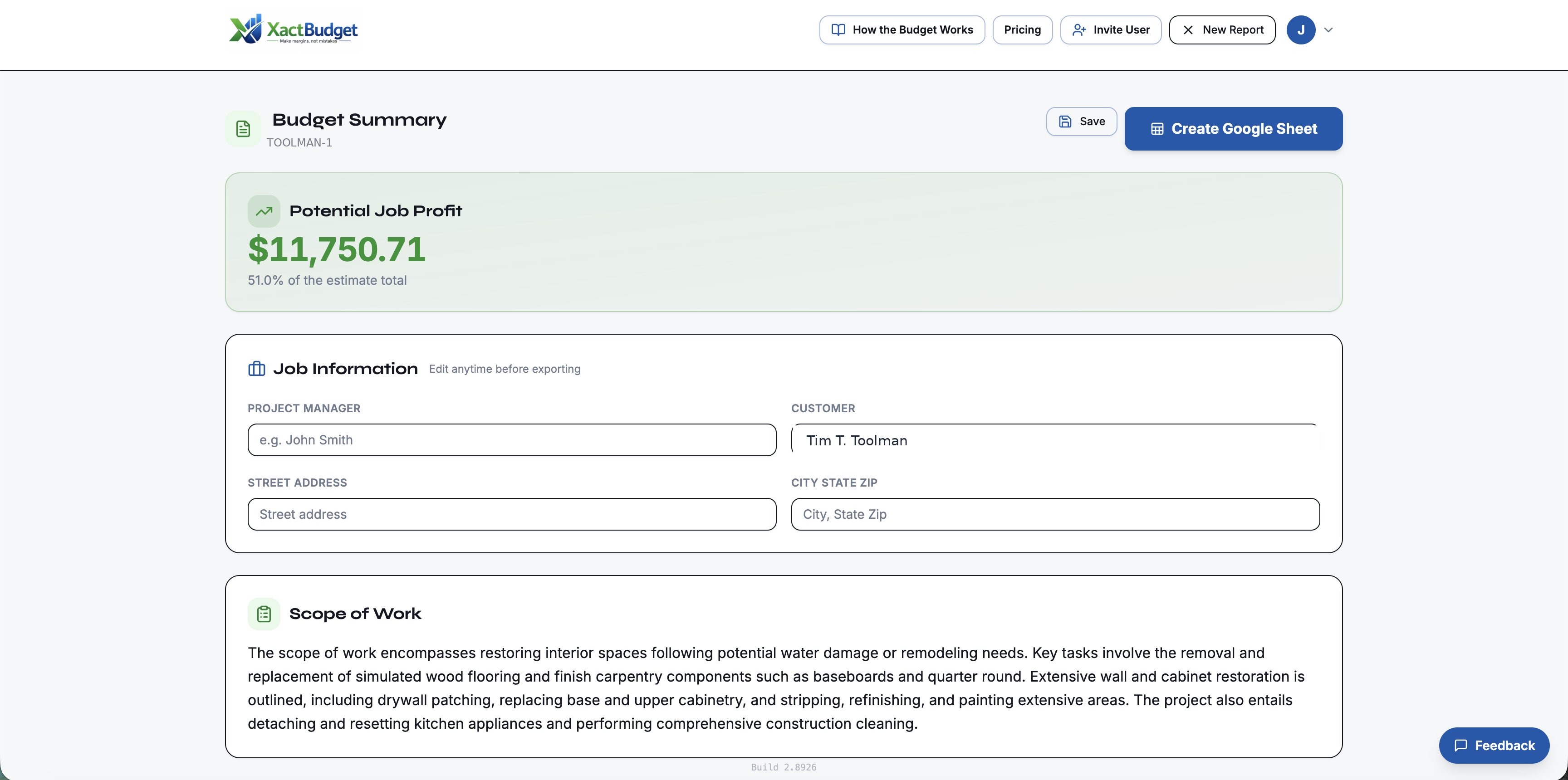
Every budget lives in XactBudget at app.xactbudget.com. Sign in from any device and your company's budgets are listed there, ready to reopen. No Google account or spreadsheet required.
Add your company logo and wording. In Settings, upload your logo and set your company details, payment schedule, Work Authorization and warranty text once. They print on every document.
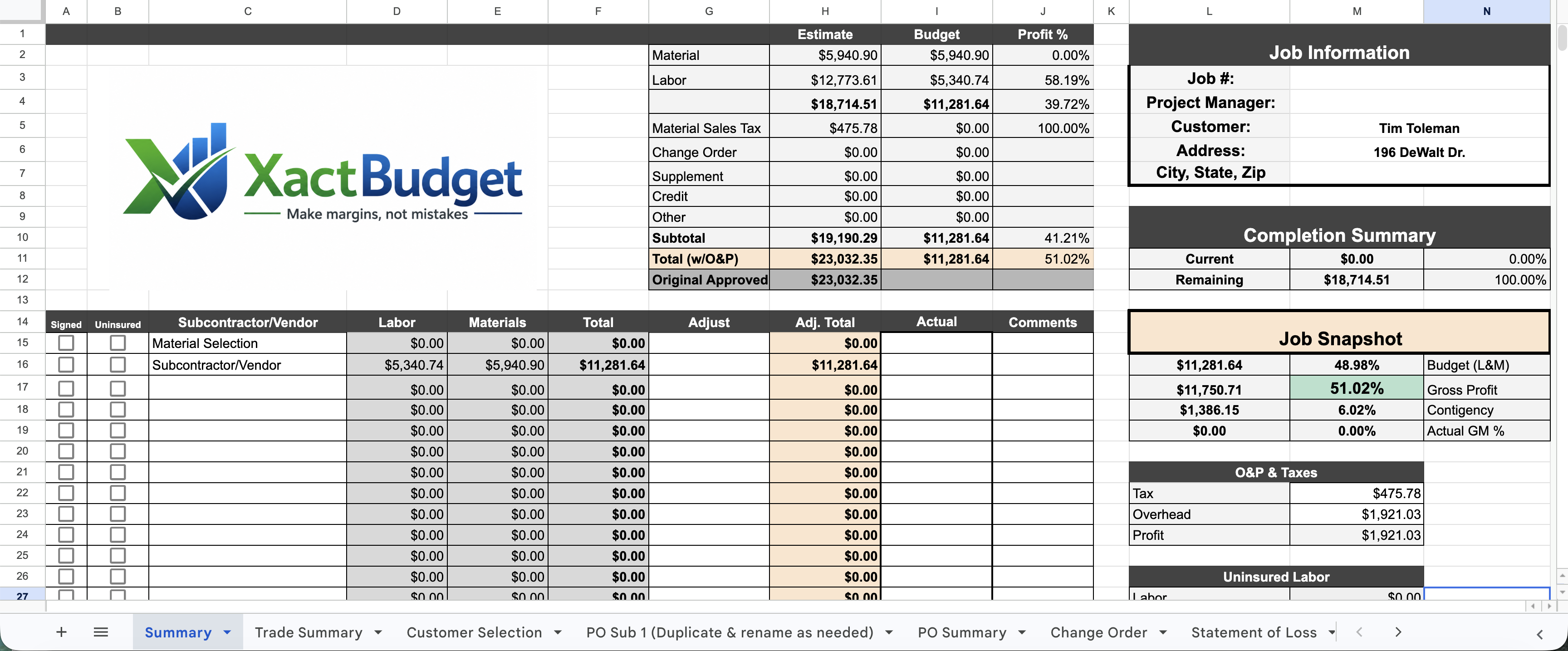
Using the Google Sheets version? Your existing Sheets budgets are still available at xactbudget.com/sheets.
Export your Xactimate reports
From Xactimate, save the Summary Report as a PDF with only Detailed Category checked. That is the only report required. If you have them, also save the TAM (adds quantities to scopes and POs) and the Components report (builds the Materials Sheet).
Sign in and set up your company
Go to app.xactbudget.com and create an account with your email or sign in with Google. The first time, set up your company and you will get a company code to share with your team so everyone works the same budgets.
Build the budget
On the Budgets page, drop the Summary PDF in the Summary slot (and the TAM and Components if you have them), then click Build budget. In about two minutes every trade and line item is read and organized.
Fill in the job info and confirm the total
On the Summary tab, complete the Job card (job #, PM, claim #, customer and address) and confirm the Updated Estimate matches your Xactimate total. The job info flows onto every document.
Assign subs and vendors
On the Trade Summary, set the subcontractor (labor) and vendor (material) for each line, or use Bulk assign to cover the whole budget or whole Xactimate categories at once.
Review and adjust
Back on the Summary, see what each sub and vendor gets. Use Labor adj. and Materials adj. as you negotiate and watch the gross margin update in real time.
Print the job package
On the Reports tab, open or print any of the 11 documents (scopes of work, purchase orders, customer selections, materials sheet, change orders and more), or tick the ones you want and click Print selected reports.